


CurseForge
Learn how to publish your mod to CurseForge
CurseForge is a mod hosting platform, allowing you to share your Hytale mods and creations with players via our website and app.
1. Create CurseForge Account
First, visit our sign-in page and either log in to an existing account or click “Create an account”.
This can be done using any Google, Discord, GitHub or Twitch account.
2. Create a Project
Now that you're logged in, you can visit our Author Console and navigate to the Projects tab, then click “Create a Project”, either in the sidebar or at the top of the page.
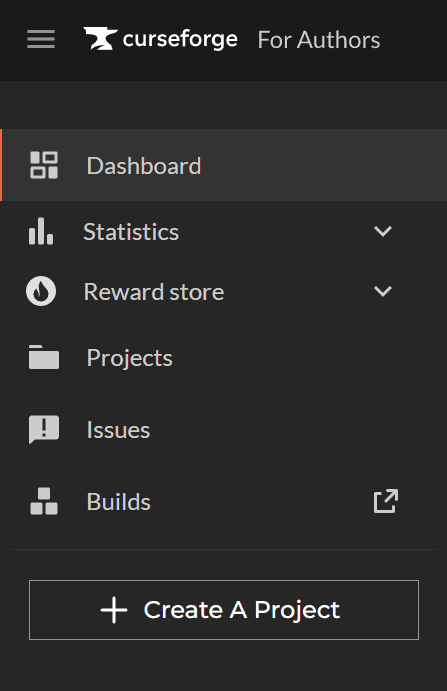
This will then take you to the project creation flow. First, select your game (in this case, Hytale) for and the page will be updated with new fields waiting for your inputs. Please see our
Moderation Policies articles for more information about what is and isn't allowed when creating a new project. Below are the fields along with their descriptions:
- Name: This is the title of your project. It should be unique to your project. If the name is already taken, it will be rejected.
- Summary: This is a short blurb about the mod that will show up in the project listings
- Description: This is the longer explanation of what your mod does/adds. Make sure you clearly elaborate on your project. We will reject your project if the description is not grammatically correct or if it does not sufficiently describe the project you are creating. This can be edited later. Note: All titles and descriptions must be in English.
- Project License: This is a drop-down field that contains the most common licenses used in modding games. Research the license type you want to use, including its pros and cons. You can also choose to use a Custom License at the bottom of the dropdown list and enter any text you want.
- Class: This is the root category for your project. Ensure you select the correct one, as it may impact supported file types and app support in CurseForge.
- For Hytale, there are four types of Class:
- Mods
- This is the class that contains both Asset Packs and Plugins, and you should upload either here.
- Worlds
- Prefabs
- Bootstrap
- This is the class that contains all Early Plugins.
- Mods
- For Hytale, there are four types of Class:
- Main Category: This is the primary category into which your project will be sorted.
- Additional categories: You can add up to 4 of these. Your project will also show up in lists where people are searching for these types of mods. Be careful, though, if you just add categories that have nothing to do with your mod, we may send it back to you for changes.
- Logo Image: A unique icon to identify your project by.
3. Upload a File
Once you've set up your project and filled in the above information, you now need to upload a file to your project for it to enter the moderation queue. To do this, visit the “Files” tab in your Author Console page.
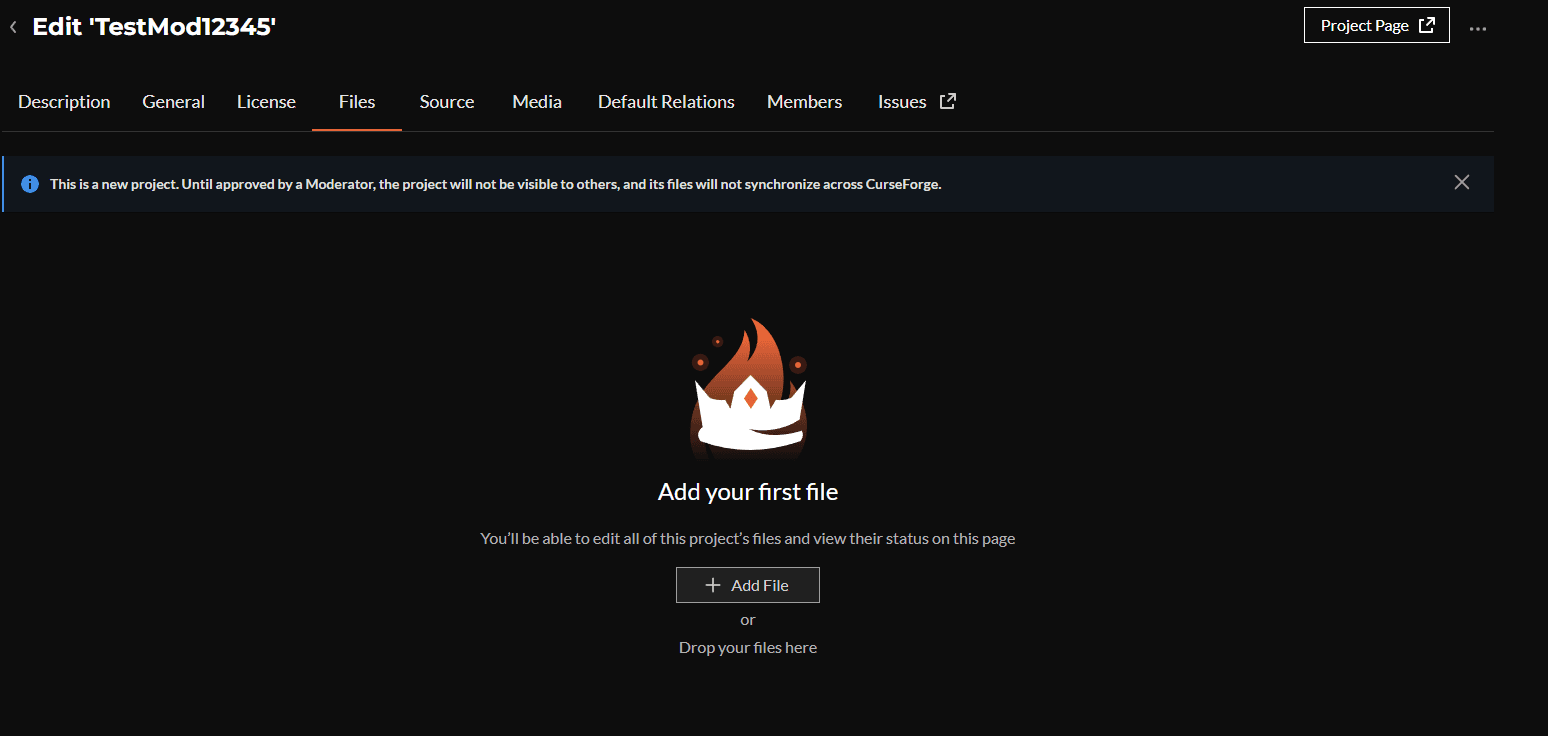
Then, click on “Add File” and upload your mod's file, entering any additional information or meta you wish to include regarding this file.
The file format will depend on the class you select.
For Plugins
If you're uploading a plugin for Hytale, please make sure you select the "Mods" class and upload your file as a jar file.
For Packs
If you're uploading a Pack for Hytale, please make sure you select the "Mods" class and upload your file as a ZIP file
For Worlds
If you're uploading a World for Hytale, make sure you upload it to the "Worlds" class and upload your file as a ZIP file.
Once you've uploaded your file, it will be sent for our moderation team to review, and once approved, it will be live for all players on CurseForge!
4. Additional Resources & Guides
You can refer to the following resources for guides on how to create a project page, using the upload API, and creating the best project page:
- How to Pass Moderation Review: https://blog.curseforge.com/how-to-pass-moderation-review-on-curseforge-2/
- Creating and Submitting a Project: https://support.curseforge.com/en/support/solutions/articles/9000197241-creating-and-submitting-a-project
- How to Create the Best Project Page: https://blog.curseforge.com/how-to-create-the-best-project-page/
- Our Mod Approval Process: https://blog.curseforge.com/our-mod-approval-process/