


3. Thunderstore Package Upload
Let's go over the basics of uploading a Thunderstore package.
Now it is time to upload the package.
Zipping up your Package
First we will need to zip the package so that it can be uploaded. To do so, hit CTRL+A or Select All or your OS equivalent in the exact folder containing the manifest.json, icon.png, CHANGELOG.md (if you have one), and README.md, this will be the root of your package. Next Right Click on a file or your OS equivalent and than hit Send To -> Compressed Zip. This zip file will be what you use to Upload your package and it should look akin to the following image.
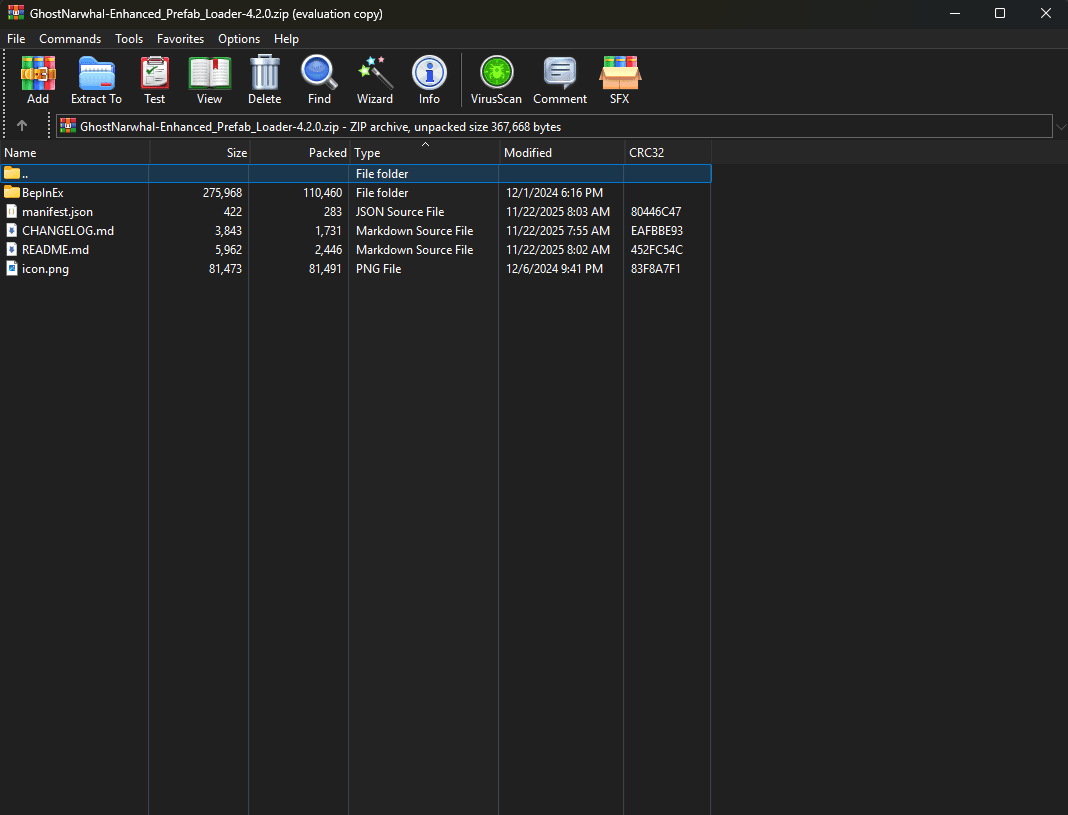
Note, you do not need the BepInEx folder in this package, and your package may vary from the screenshot but as long as the other 4 files are in the root of the zip like in the screenshot your set.
You can check this by simply opening the zip package and seeing if the first thing you see contains the 4 required files and whatever your package contains.
So now you may be wondering well hey, how do I upload the package now that I've gone through all the Setup for it? To answer that question here is a step by step on creating a Team than a step by step on Uploading the Package, it's actually extremely simple to get through!
Creating your Package Team
If you already have one good, feel free to skip to the next section! However if you don't here's a guide on how you can setup your team!
-
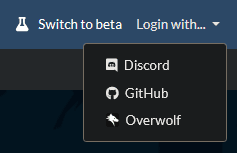
First you will need to login to Thunderstore, you can use your GitHub, Discord, or Overwolf account to do this, note make sure its something you can retain access to, once you lose the account it'll be hard to get back. You can find this here:
-
After you login you'll see your username in the top right corner, it may be an old one, but that doesn't matter, next to it you will see
Settings, hit the button. You can find this here:
-
This will take you to your
Linked Accounts, change this as needed. -
Tap
Teams, you may see an empty list or a list with other teams within it, if theres a team in the list you want to use you can just use that one. It should look something like this: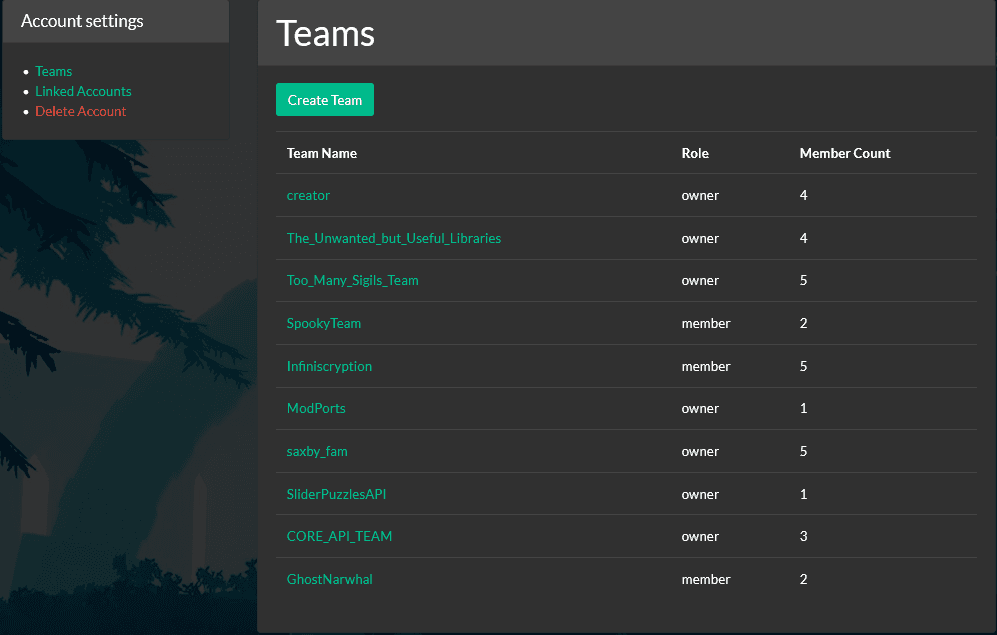
-
Otherwise, hit
Create Team, this will popup a menu for you to enter your teams name it is Alphanumeric and underscores are replaced with spaces, similar to that of your package name, give it whatever name you wish than hitCreate Team.
Now you have created your team before we proceed, let's cover some Team Settings.
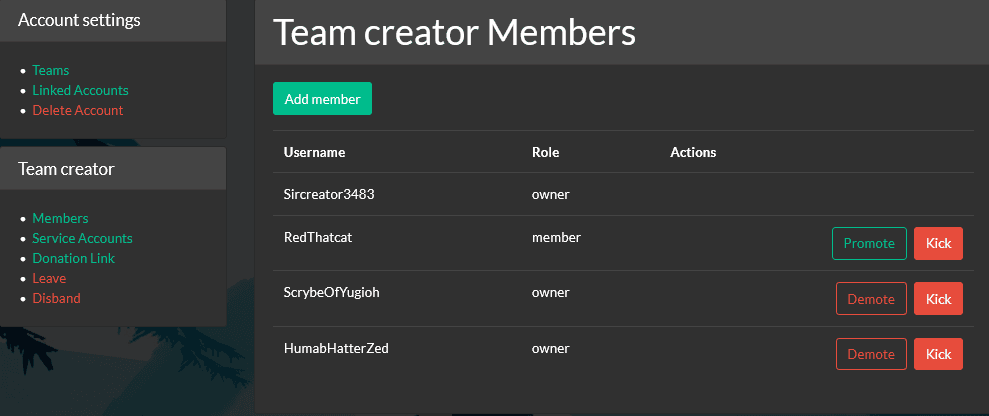
- Members: The page you go to when you enter your teams page, on this page you can add team members, remove them, give them ownership privileges, etc.
- Service Accounts: This page will let you create a Service Account for your team, this is often used with Thunderstore CLI which helps handle both the building and publishing of packages.
- Donation Link: This page will allow you to set a link in which will be shown as your Donations link, this is meant for things like sharing your Ko-Fi so you can receive donations for mod development and such not just random links.
- Leave: This will make you leave the team, use with caution, no once you leave you won't be let in without a fiasco of either praying theirs another team owner and reaching to them or dealing with Thunderstore support.
- Disband: This will disband the team and can only be used if the team has uploaded no packages to the site.
Now that you've finished setting up your team hit Teams in the left side bar, now that you've made the team it will be listed on the page, if you hover over the team name and click, it will take you back to the team settings, you can also see your role in the team and how many people are within the team in the list view.
Uploading your Package to Thunderstore
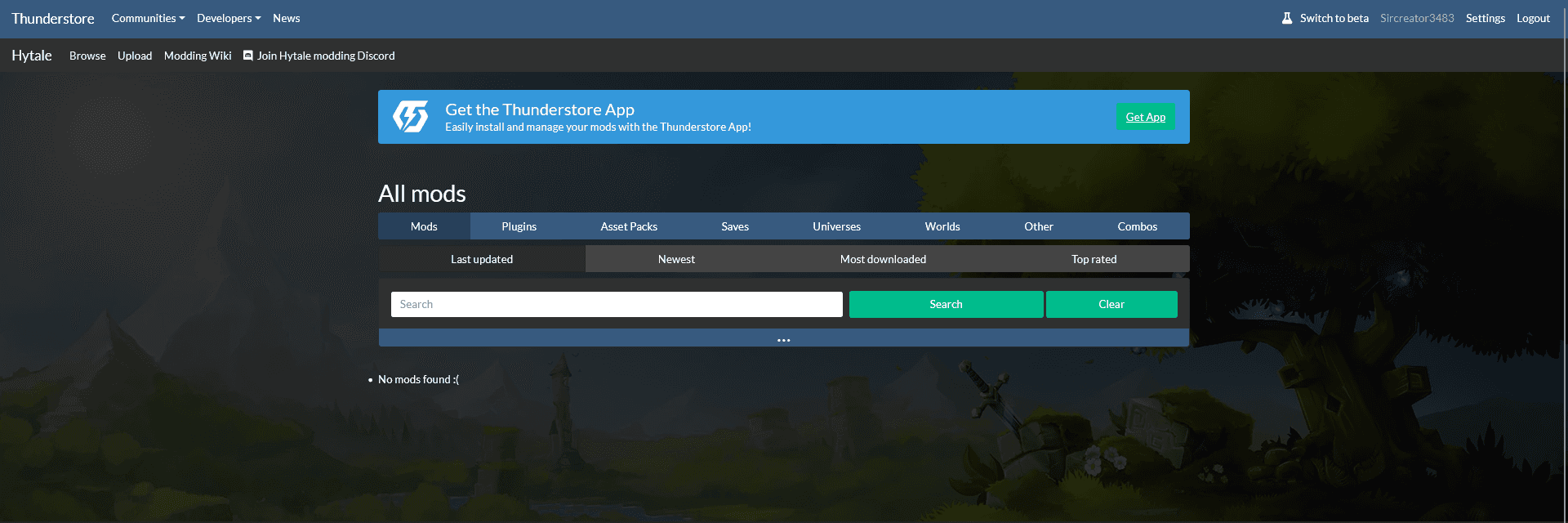
First navigate to the Hytale Community Page, make sure your logged into the account with your team. The page will look something akin to this:
Now for the step by step.
-
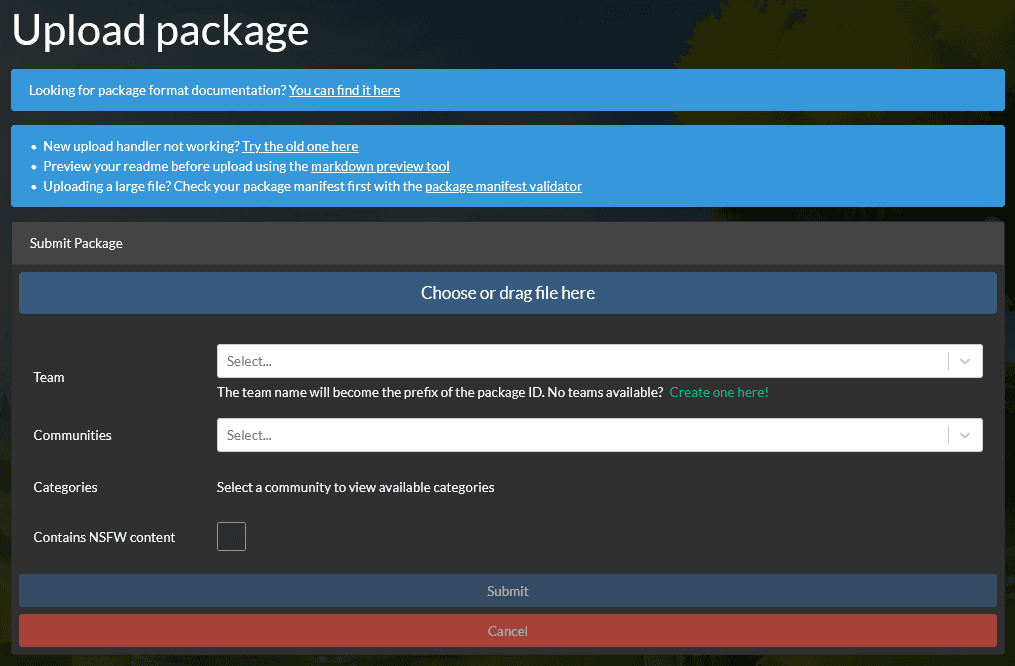
Press Upload in the Top Left, this will take you to the Upload page. This will look like:
-
Drag your thunderstore package's zip into the
Choose or Drag a Filebutton, or hit the button and find the file either works, once its done it should say Upload Successful, if not try reading the error and seeing where you went wrong in the setup, its usually a quick fix, if you can't figure it out head to Thunderstores Support Discord. -
Select your team on the Text Box right of the word
Team. -
Select
Hytaleon the Text Box right of the wordCommunities. -
Once done you'll see a Text Box right of the word
Categoriesappear, in this box you will select all of the tags that correlate to your Package. See Thunderstore Prequisites for what each Tag means and corresponds with. -
If the content is NSFW it must be marked as such otherwise the package will be taken down promptly.
-
Hit
Submitor if you uploaded the wrong package but it was still valid hitCanceland repeat from Step 1, note if you do still accidentally publish the package with the wrong team or name you can go to the mod page that was uploaded, hit Manage Package than Deprecate. Or if absolutely necessary you can try Thunderstore Support and to that I wish you luck, packages are immutable which is why they cant be simply deleted.
That said that is how you upload a package to thunderstore and how you create a team for thunderstore as well. If you need support for any reason at all contact Thunderstore via the Support Discord
Next dive into how to updating your package: Updating the Package