

Browsing the server.jar code
Learn how to decompile the HytaleServer.jar and browse the source code.
Our patcher tool allows you to easily prepare an environment for exploring the Hytale Server.
Why?
When you add a compiled jar as a library, IntelliJ only decompiles class by class and doesn't let you search it. For example, you cannot right click some class and then Find Usages. This script will give you a ready to use Hytale server code as a project where you can explore anything you want.
If anything goes wrong, please ping the author in this post in the Hytale Modding discord server
Instructions
If you prefer watching over reading, check out the awesome video walkthrough made by Hyphen45. Note that the written instructions have since been improved, but the process remains the same.
After watching, check out the Adding HytaleServer as a dependency section below.
-
Clone the repository
git clone https://github.com/HytaleModding/patcher.git, and enter the directory usingcd patcher -
Create a Python virtual environment in the
.venvfolder. The command for this varies by platform but it is probably one of these:python -m venv .venvpython3 -m venv .venv(Linux)py -3.13 -m venv .venv(Windows)
In the last one, specifying the version is recommended if you have multiple Pythons installed.
-
Activate the virtual environment:
- Windows: If you're using normal command prompt, do
".venv\Scripts\activate"and if you're using PowerShell, do.\.venv\Scripts\activate - Linux/Mac:
source .venv/bin/activate - From now on, you are running python commands from inside the venv, hence you must use
pythoninstead ofpyorpython3to invoke python.
- Windows: If you're using normal command prompt, do
-
You should now have
(.venv)prefixed to the current working dir in the terminal. -
Inside the venv, install the dependencies
pip install -r requirements.txt
-
Install these dependencies and ensure they are on PATH:
After modifying your PATH, don't forget to close existing terminals and start a new one. Verify that those tools are installed by running these commands: git --version, mvn --version, java --version, jar --version.
- Put your HytaleServer.jar in the same root directory of this repo or specify an environment variable
HYTALESERVER_JAR_PATHwith the path to your HytaleServer.jar
Then run this:
python run.py setupWhat will it do:
- copy the HytaleServer.jar into
work/download- (on Windows) fix
META-INF/licensename collision
- (on Windows) fix
- decompile only the
com.hypixelpackage using Vineflower and save the output towork/decompile - set up a Maven project in
hytale-serverwith the decompiled code- all other libraries the server uses are added into pom.xml and you don't have to worry about them.
You can then open the hytale-server folder in your favorite IDE and begin exploring the code. For IntelliJ IDEA,
you must first set up the SDK. After opening the project (you can open the pom.xml file, IDEA will prompt you to open
the entire project) press Ctrl+Alt+Shift+S and under Project configure SDK and Language level to 25.
This decompiled code is likely broken. But it is somewhat usable for exploration. Try Ctrl+Shift+F and search PacketAdapters. Want to figure out where is PlayerSetupConnectEvent constructed? Just find it somewhere then right click and Find Usages, and at the bottom see New instance creation.
Adding HytaleServer as a dependency
Go into hytale-server/src/main/java folder in your terminal (cmd or powershell). Run this command
jar -f hytale-server-stripped.jar -c comThen run this from the same folder:
mvn install:install-file -Dfile=hytale-server-stripped.jar -DgroupId="com.hypixel.hytale" -DartifactId=HytaleServer-stripped -Dversion="1.0-SNAPSHOT" -Dpackaging=jarThen, in your plugin project add this dependency and also copy other dependencies from the hytale-server/pom.xml.
<dependency>
    <groupId>com.hypixel.hytale</groupId>
    <artifactId>HytaleServer-stripped</artifactId>
    <version>1.0-SNAPSHOT</version>
    <scope>provided</scope>
    <!-- other dependencies too... -->
</dependency>
Congratulations!
Reloading Maven projects
You may have to reload the maven project sometimes. Here's how to do that:
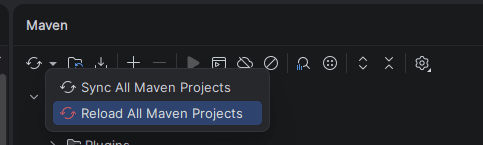
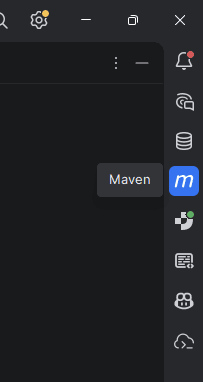
It is located in the "m" icon on the right side:
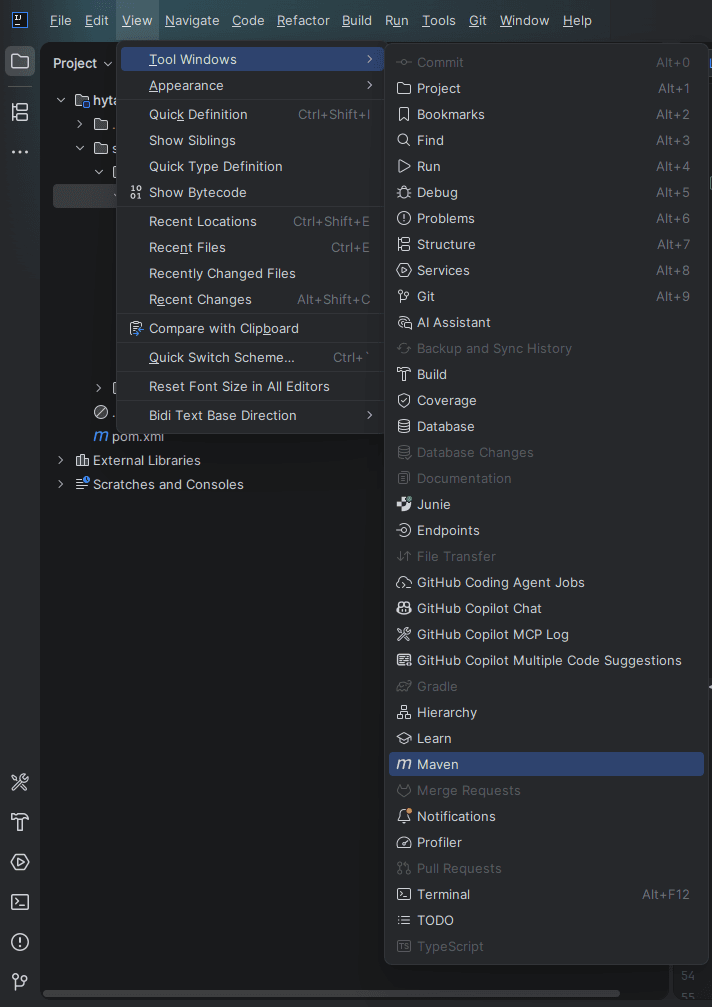
If you don't see it, enable it under View -> Tool Windows -> Maven.