


1. Thunderstore Package Setup Basics
Let's go over the basics of setting up a Thunderstore package.
Now let's go over the basics of setting up a package for Thunderstore.
Package Setup Basics (Pre-Upload)
There will be some more in depth articles to go along side this one covering how to setup the upload for each type of content, this article will merely cover the basics of what you must have in order to upload your package.
So you may be asking what do I need? Well to answer that you might've saw in the Pre-Requisites but theres ~4 files you must have included in each upload, restated below.
- manifest.json
- icon.png
- README.md
- CHANGELOG.md
A Changelog is not required, but highly advised.
Now let's go more in depth on how each one works and what they do in terms of Thunderstore's packaging system.
The Manifest (manifest.json)
This file controls your packages name and version, along with what the package depends upon, the website URL the package will link to, and the short description given to the user before they click on the page.
How is it written? It will be written adjacent to the following json.
{
  "name": "",
  "version_number": "",
  "website_url": "",
  "description": "",
  "dependencies": [
    "",
    ""
  ]
}
Here is a useful manifest checker and creation tool: JSONEditor: Easy To Use ThunderStore Manifest Maker & Thunderstore DevTool: Manifest Validator. Notably the first of the two will likely be nicer and more user friendly to use!
Again each of these properties were mentioned in Pre-Requisites but here's the basics of what you need to know to fill your manifest's data.
- Name -> This must be a Alphanumeric name without any spaces or special symbols,
_will make a space at a given point. - Description -> Your packages short description that will be displayed to the user, note it may not exceed 250 characters.
- Version Number -> Your Major.Minor.Patch version numbering system, once a versions in use it may not be over wrote, you must append the version in the major minor or patch part. When updating the version think of it as the following, if it is bugfixes append the Patch by 1, if it is a minor addition, removal or change append the Minor by 1, if it is a Major Breaking change append the Major by 1. Each part of the version can be multi-digit! e.g.
2.5.32is a possible version. - Website URL -> This is the URL in which the package will link to, most usually use it to link the GitHub repo associated with the package as a way of providing somewhere for issues with the package to go, or for ease of access to the contents source code.
- Dependencies -> This is a list of all Thunderstore packages in which this package will depend upon.
The README (README.md)
This is a file that will be used to display any info you wish to provide about the content. This uses Markdown syntax and has support for Foldouts, Images, Gifs and more.
Here's a Markdown Preview and Validation tool, again the first of these more user friendly MarkdownLivePreview & Thunderstore DevTool: Markdown Preview. Note in this case you may want to check if Thunderstore supports formatting you're after and will want to test your Markdown in both systems.
With these I'd advise keeping it basic while also going pretty in depth, for fully indepth we have a WiKi system that will be much more useful for you.
The CHANGELOG (CHANGELOG.md)
This is a file that will be used to display your Update changes if you wish to include those, it is highly advised to include a changelog. This will use the Markdown syntax once more, this time around I'll give you some useful markdown tools that will be useful for changelogs. You can utilize the same tools as shown in the README.md section above.
The Icon (icon.png)
This is a 256x256 ratio image that will be used to represent your package. It is meant to convey what your content is in a visualized form, no you may not cheat with AI, just text on white works as a Icon as long as it conveys what the mod is your set!! Oh also if you need to feel free to ask someone for help making an Icon, someone being an Artist or Sprite Maker within whatever community your apart of.
Well does anything else go in the package? Nope nothing required anyways. However the following guides will go over each main type of content you can post on Thunderstore. Everything that falls outside of such is deemed as Other meaning that you'll come up with a way to package it but try and see if another mod author packages things with the same system first and follow their footsteps if possible.
Useful Markdown Pieces
Foldouts
<details>
<summary>YOUR FOLDOUT TITLE</summary>
Your foldouts contents.
</details>
YOUR FOLDOUT TITLE
Your foldouts contents.
You may be wondering why this is open by default, well thats because instead of <details> like in the sample it is <details open>, in this case it is to show the contents of the example while allowing it to be folded to show how it works.
How can this be useful? Well think of a changelog:
- The latest version is whats relevant in most cases so lets have it shown by default while still being hidable.
- The rest are usually irrelevant so lets have it closed while being openable if someone needs it for a reference.
Images
If your familiar with markdown you have likely seen this before, this is how we embed a image within the text format, an example of one is below.

Below is another example of a image embed, this one comes with a Hyperlink, that when clicked will take you there!
This uses a bit of a different setup to the prior image akin to:
[](Redirect URL "Redirect Hover Text")For reference this is a Hyperlink with a Image in the "What do I show?" portion.
The below is another way you can embed a Image, it utilizes HTML elements.
<img src="Image URL" alt="image" width="10%" height="auto" style="display: block; margin:auto;">Image link used in this section: https://gcdn.thunderstore.io/live/repository/icons/CORE_API_TEAM-Texture_Replacer-1.1.0.png.128x128_q95.png
Gifs
This follows the same system as images however your Image URL instead leads to a gif like so:

Gif link used in this section: https://media3.giphy.com/media/v1.Y2lkPTc5MGI3NjExNnBzMWFrc2V3dm9scmZvY2l5Y3RvMnBnMDZ6NTVrMWZyenR5dWdiZCZlcD12MV9pbnRlcm5hbF9naWZfYnlfaWQmY3Q9Zw/04qteO4WG5jynnEIhL/giphy.gif
Videos
While this does not directly use a built in Markdown system to preview the video the following is a nice way of linking to a playable YouTube video.
[)](youtu.be link to the video)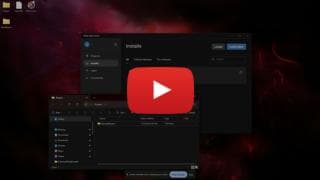
How do I get a proper Youtu.be link to the video? Well simply hit Share on the Video in Youtube copy the link than remove the part starting at and following ?si=.
For example:
https://youtu.be/GCGfrgmCCc8?si=WdPkCMWXtG80TFZF
 |
\_/
https://youtu.be/GCGfrgmCCc8
and the last bit the GCGfrgmCCc8 in this case is the video ID you will insert into the first URL in the setup.
This is roughly the closest thing you'll get to playing a video on the Thunderstore packages page.
Next dive into how to setup your content into the package: Community Package Setup